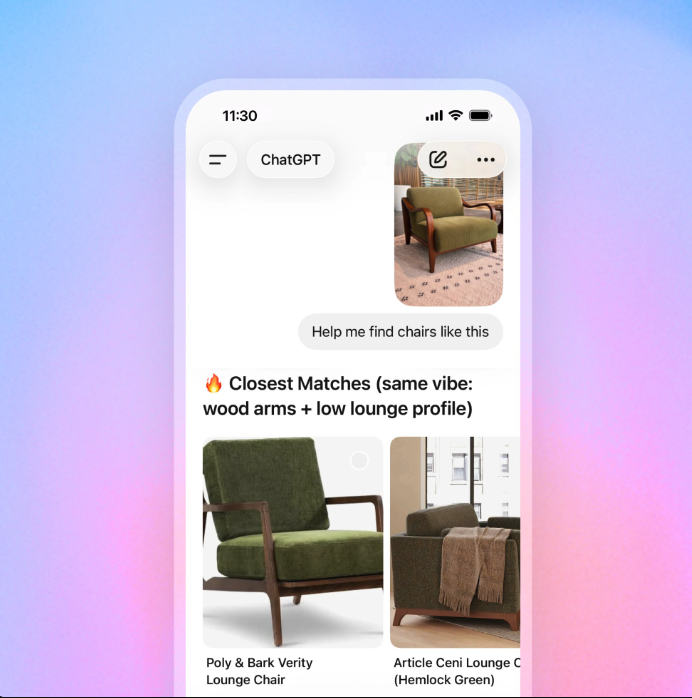
This ChatGPT shopping feed setup guide covers everything you need. ChatGPT Shopping is now live for US users.
This guide walks you through exactly how to do it — from merchant portal registration to feed format, required fields, validation phases, and checkout integration. We've based this on the official OpenAI Commerce API documentation and our hands-on experience setting up feeds for clients.
Before you start: You need to be approved on the ChatGPT merchant portal at chatgpt.com/merchants. Feed submission only becomes available after your merchant account is active. If you haven't applied yet, start there first.
Step 1: Register on the ChatGPT Merchant Portal
Everything begins at chatgpt.com/merchants. This is OpenAI's dedicated portal for businesses wanting to appear in ChatGPT Shopping results. The application process involves:
- Business verification and category eligibility check
- Agreement to OpenAI's commerce policies
- Confirmation of your ecommerce platform (Shopify, WooCommerce, custom, etc.)
- Declaration of the markets you sell into
Shopify and Etsy merchants have a streamlined path — both platforms are pre-qualified with OpenAI's infrastructure, which means your merchant setup and checkout integration are significantly simplified. Non-Shopify merchants will need to complete a more involved technical integration, including the ACP checkout endpoints covered in Step 5.
UK merchants: Apply now even though the UK consumer rollout is Q1–Q2 2026. Merchant applications are open, and early applicants will be first in the queue when UK Instant Checkout goes live. Being established in the portal before launch is a meaningful competitive advantage.
Step 2: Choose Your Feed Format
ChatGPT Shopping accepts product data in several file formats. OpenAI's preference is Parquet — it's faster to process, more compression-efficient, and better suited to large catalogs. However, the compressed alternatives work equally well for most merchants.
All formats must use UTF-8 character encoding. Files are delivered to OpenAI via SFTP push — you push to their endpoint on a scheduled basis, overwriting the previous file rather than creating new filenames each time. Keep shard file names stable across updates.
File size limits: Maximum 500,000 items per shard file. Target individual files under ~500MB. If your catalog is larger, split it into multiple consistent shard files.
Step 3: Build Your Product Feed — Required Fields
The feed structure has two layers: a file header that identifies your account and target market, and the product records themselves. Both have required fields that must be present or your feed will be rejected.
File Header Fields
| Field | Type | Status | Example |
|---|---|---|---|
| feed_id | string | Required | feed_8f3K2x |
| account_id | string | Required | acct_7F3K2x |
| target_merchant | string | Required | merch_123 |
| target_country | string | Required | GB (ISO 3166-1) |
Product Object Fields
Each product record contains two required fields at the top level, and one of them — variants — contains its own set of required fields.
| Field | Type | Status | Notes |
|---|---|---|---|
| id | string | Required | Must be stable and persistent across all feed updates — never change this |
| variants | Variant[] | Required | Array of purchasable configurations (sizes, colours, etc.) |
| title | string | Recommended | Product name — critical for AI intent matching |
| description | object | Recommended | Plain text, HTML, or Markdown — include at least one |
| url | URI | Recommended | Canonical product page URL |
| media | Media[] | Recommended | Product images — first entry treated as primary |
Variant Object Fields
Every product must have at least one variant. Even if you sell a single-SKU product with no options, it still needs a variant record.
| Field | Type | Status | Notes |
|---|---|---|---|
| id | string | Required | Must remain stable across all updates |
| title | string | Required | e.g. "Black / Size 10" or "Default" |
| price | Price object | Recommended | amount (ISO 4217 minor units) + currency code |
| availability | object | Recommended | available (bool) + status: in_stock / backorder / preorder / out_of_stock / discontinued |
| barcodes | Barcode[] | Optional | GTIN, EAN, UPC — improves matching accuracy significantly |
| variant_options | VariantOption[] | Optional | name/value pairs for dimensions (color, size, material) |
| categories | Category[] | Optional | Product taxonomy — aids intent classification |
| condition | string[] | Optional | ["new"] or ["secondhand"] |
| seller | Seller object | Optional | Policy links: privacy_policy, refund_policy, shipping_policy, terms_of_service |
| media | Media[] | Optional | Variant-specific images (e.g. showing the blue colourway) |
Critical rule on IDs: Both product id and variant id must never change once submitted. ChatGPT's system tracks products by these identifiers across feed updates. Changing them causes the product to be treated as a new item — losing any ranking history and potentially causing duplicate listings.
Step 4: An Example Feed Record (JSONL)
Here's what a complete single-product JSONL record looks like with all recommended fields populated:
// Header row (first line of file)
{
  "feed_id": "feed_abc123",
  "account_id": "acct_xyz789",
  "target_merchant": "merch_456",
  "target_country": "GB"
}

// Product record
{
  "id": "prod_ergoflex-500",
  "title": "ErgoFlex Pro 500 Ergonomic Office Chair",
  "description": {
    "plain": "Fully adjustable lumbar support, breathable mesh back, 5-year warranty."
  },
  "url": "https://yourstore.co.uk/products/ergoflex-pro-500",
  "media": [
    {
      "type": "image",
      "url": "https://yourstore.co.uk/images/ergoflex-500-main.jpg",
      "alt_text": "ErgoFlex Pro 500 in black, front view",
      "width": 1200,
      "height": 1200
    }
  ],
  "variants": [
    {
      "id": "var_ergoflex-500-black",
      "title": "Black",
      "price": { "amount": 34900, "currency": "GBP" },
      "availability": { "available": true, "status": "in_stock" },
      "barcodes": [{ "type": "gtin", "value": "5055999001234" }],
      "condition": ["new"],
      "variant_options": [{ "name": "colour", "value": "Black" }]
    }
  ]
}
Price format: The amount field uses ISO 4217 minor units. For GBP, that means pence — so £349.00 is submitted as 34900, not 349 or 349.00. Getting this wrong is one of the most common feed validation failures.
Step 5: Submit and Validate Your Feed
OpenAI follows a three-phase rollout approach for new merchant feeds. Don't try to push your full catalog on day one — start small, validate, then scale.
Phase 1 — Validation (~100 items)
Submit a small sample including all required fields plus your most popular products. Review validation errors from the feed processor before proceeding. Fix any missing fields, malformed values, or encoding issues at this stage — they're much easier to resolve in a 100-item file than a 50,000-item one.
Phase 2 — QA (Full snapshot, manual review)
Once validation passes, submit a complete catalog snapshot. OpenAI's team reviews the first full submission for quality. Products may start appearing in limited Shopping results at this stage. Check that prices, images, availability statuses, and descriptions are all rendering correctly.
Phase 3 — Production (Automated steady-state)
Switch to automated daily (or more frequent) feed pushes via SFTP. At this point you're in production — your products are eligible to appear in ChatGPT Shopping results. Maintain a 15-minute refresh pipeline for inventory and price changes to keep your data accurate and avoid suppression due to stale availability signals.
Step 6: Configure Checkout — ACP + Stripe Integration
Getting your products listed is only half the job. To unlock the Instant Checkout buy button — where users can purchase directly inside ChatGPT without visiting your website — you need to implement the Agentic Commerce Protocol (ACP).
ACP is an open-source infrastructure built jointly by OpenAI and Stripe. It handles the secure transmission of order data between ChatGPT and your merchant backend. The endpoints you need to implement are:
- Checkout session creation — initiates a new purchase transaction
- Order updates — handles changes (quantity, address) during the checkout flow
- Order completion — confirms the purchase and triggers your fulfilment process
- Cancellation handling — processes cancellations initiated from within ChatGPT
- Order status returns — provides real-time order tracking back to the user
Shopify merchants: Skip most of this. Shopify's native OpenAI integration handles ACP automatically. Your checkout endpoints are pre-configured — you just need to enable the ChatGPT sales channel in your Shopify admin and connect your Stripe account.
For non-Shopify merchants, implementation effort depends on your existing tech stack. If you're already using Stripe as your payment processor, the ACP integration is relatively lightweight — OpenAI has published SDKs and reference implementations. If you're using a different payment provider, more custom work is required.
Payment security is handled via encrypted, scoped payment tokens. Each token is valid only for a specific merchant and a specific transaction amount — so there's no risk of tokens being reused or misapplied.
Step 7: Ongoing Optimisation — Don't Just Set and Forget
Getting your feed live is the start, not the finish. ChatGPT Shopping's ranking algorithm rewards products with consistently clean, detailed, up-to-date data. The merchants who see the strongest ongoing visibility are those who treat their feed as a live marketing asset, not a one-time technical task.
Key ongoing optimisation practices:
- Refresh pricing and availability frequently — stale data (especially out-of-stock products shown as available) triggers suppression
- Optimise product titles for conversational queries — "Lightweight running shoes for women size 8" will outperform "Product SKU 48291"
- Include GTIN/barcode data — improves product identity matching against user queries significantly
- Add rich descriptions — the AI uses your description text to understand use cases and match conversational intent
- Keep variant data complete — missing size/colour/material dimensions cause poor query matching
- Monitor competitor gaps — track which queries your competitors appear for that you don't
Common Feed Validation Errors to Avoid
Based on official OpenAI documentation and real-world submissions, these are the most frequent reasons feeds fail or products get suppressed:
- Missing required fields — particularly variants.id and variants.title
- Wrong price format — submitting 349.00 instead of 34900 (minor units)
- Changing product/variant IDs between feed updates — causes duplicate records and lost ranking history
- Non-UTF-8 encoding — causes character corruption, particularly with special characters in product names
- Invalid currency or country codes — must be strict ISO 4217 and ISO 3166-1 respectively
- Stale inventory status — out-of-stock items with available: true will be suppressed after complaints
- Broken or redirected media URLs — images that 404 or redirect cause product records to be deprioritised
How Long Does It Take to Appear in Results?
Timeline from application to live product visibility varies, but a typical progression looks like this:
- Merchant portal approval: 1–5 business days
- Feed validation (Phase 1): 24–48 hours after submission
- Full QA review (Phase 2): 3–7 business days
- Production visibility: Products start appearing as ChatGPT indexes the feed
- Stable ranking signals: 2–4 weeks of clean feed history typically needed before consistent positioning
This is why applying and submitting your feed before the UK consumer launch matters so much. Businesses that complete this process now will have 2–3 months of feed history and ranking data established by the time millions of UK consumers gain access to ChatGPT Shopping.
Need Help Setting Up Your Feed?
We handle the full process — merchant portal application, feed build in your required format, ACP checkout integration, and ongoing optimisation. Get your products in front of ChatGPT's 1 billion users before your competitors do.
View Our ChatGPT Shopping Service →